Learn step-by-step How To Put Page Number on Microsoft Word to make your documents look professional, organized, and easy to read.
Why Bother With Page Numbers?
- Professional look: No teacher, boss, or client wants to flip through a 20-page report without page references.
- Easy navigation: Page numbers help readers find what they need quickly.
- Required formatting: Many academic and business documents must include them.
Step 1: Open the “Insert” Tab
At the top of Word, you’ll see a row of menu options (File, Home, Insert, etc.). Click Insert. This is where most of Word’s “extras” live.
Step 2: Find “Page Number”
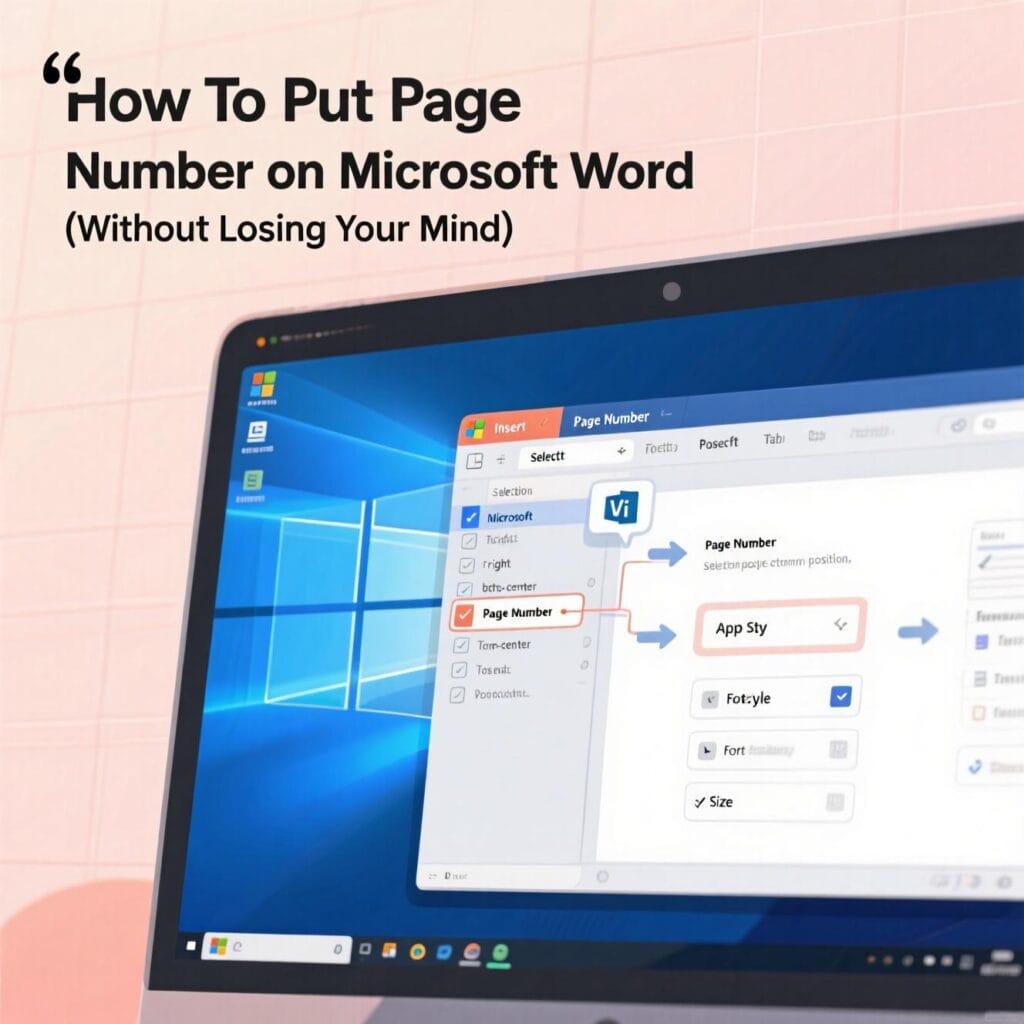
Inside the Insert tab, look for the Header & Footer group. You’ll see a button called Page Number. Click it.
Step 3: Choose Where You Want the Number
Word gives you options:
- Top of Page (header)
- Bottom of Page (footer)
- Page Margins
- Current Position (where your cursor is)
Most people go with Top of Page or Bottom of Page.
Step 4: Pick a Style
When you hover over one of the options, Word will show you a gallery of styles—centered, right, left, fancy, or plain. Pick the one you like.
Step 5: Customize (If Needed)
Once your page numbers appear, you can customize them:
- Double-click the number to edit it.
- Change the font, size, or color.
- Use the Different First Page option if you don’t want numbering on your cover page.
To find that, just go to Header & Footer Tools → Design → Different First Page.
Step 6: Close the Header/Footer
Once you’re happy with your numbering, click Close Header and Footer (top right), or just double-click anywhere outside the header/footer area.
Pro Tips
✅ If you’re working on a thesis or long document, you might need Roman numerals (i, ii, iii) for the intro and regular numbers (1, 2, 3) for the main content. You can set this up under Format Page Numbers.
✅ Page numbers update automatically—so if you add or delete pages, you don’t have to redo them.
Final Thoughts
Adding page numbers in Microsoft Word only takes a few clicks, but it can make your document look polished and professional. Once you’ve done it once, it’ll feel like second nature.
So next time you’re working on that report, essay, or novel draft—don’t skip the page numbers. Your readers (and your future self) will thank you.
source
- YoastHow to create a good meta description23 juin 2025 — Jun 23, 2025 — 4. Use your focus keyword. If the search keyword matches a part of the text in the meta description, Google will be more inclined to use it and …
- Search Engine LandSEO and meta descriptions: Everything you need to know …1 novembre 2024 — Nov 1, 2024 — While keywords in the meta description don’t directly affect rankings, they will be bolded in SERPs when they match the user’s search query.
- Rank MathHow to Write a Good Meta Description: An Ultimate Guide6 janvier 2025 — 2 Best Practices to Write SEO Meta Description · 2.1 Understand Search Intent · 2.2 Keep Meta Descriptions Upto 160 Characters · 2.3 Include Your Focus Keyword …
- SEO Tout-en-UnHow to Write Meta Descriptions for SEO (Boost CTR & …27 mars 2023 — 27 Mar 2023 — Every meta description should include the focus keyword or keyphrase that you want to rank for. Always start by performing keyword research to …
- ShopifyMeta Descriptions: Definition, Examples & How to Write Them13 mars 2025 — 13 Mar 2025 — Maintain optimal length; Make it actionable; Add a call to action; Use your target keyword; Avoid meta description generators; Test meta …